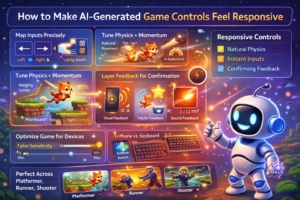
You describe your game idea, generate it, and test the controls. The character moves and jumps, but everything feels delayed or stiff. Taps or key presses take a split second too long to register, jumps fall short or overshoot, and turning feels sluggish. Players notice immediately, they mash buttons in frustration, miss easy actions, and quit after 20 seconds. This unresponsive feel comes from basic descriptions that do not specify timing, momentum, or device differences. The tool uses safe defaults, but they rarely match the snappy response players expect. Responsive controls make games addictive: inputs are triggered instantly, movement flows naturally, and actions are met with feedback.
You fix it by refining your description with exact details on response time, physics feel, input mapping, and polish. Update one aspect, generate again, play on phone and keyboard, adjust. On the AI game maker online platform, like Astrocade, you can regenerate fast for quick tests. Most creators make controls feel great after 4-6 tweaks. This guide shows why responsiveness lags and gives step-by-step refinements for platformers, runners, and shooters. Your game will go from frustrating to fluid, keeping players hooked.
Why Controls in AI Generated Games Feel Sluggish
Basic descriptions like make a jumper with tap to jump create functional but unpolished input. The tool adds average delay (0.1-0.2 seconds), generic momentum, and uniform sensitivity. On phones, finger taps compete with palm rests; on keyboards, repeated presses lag. Physics default to floaty or heavy without weight. No feedback means players guess if the input was registered. Result: actions feel disconnected, tap, wait, react. Players fight the game, not enjoy it. Responsive means zero perceived lag, natural weight, and confirming feedback. Refine by describing exact timing and feel upfront.
Map Inputs Precisely for Instant Response
Nothing kills momentum like fumbling controls, unclear inputs lead to missed jumps and rage-quits. Spell out every action crystal-clear in your prompt, covering taps vs. holds and multi-touch. Tailor to devices too: “Tap left screen half to move left, right half to right, center to jump, hold center for higher leap. Keyboard echo: “A/D moves, space jumps (hold for charged).
We tried this for Desert Terror. Raw version had vague swipes causing sand dune wipeouts; refined to split-screen taps (left/right move, bottom-center dodge-roll, top-center dune-slide hold), plus keyboard WASD + shift. Players nailed precise terror dodges in dunes, boosting completion rates, no more “what button?” frustration.
Here are input refinements for responsiveness:
- Tap registers in 0.05 seconds max, no minimum hold time.
- Separate zones: bottom 30% swipe left/right, top 70% tap actions.
- Keyboard instant: arrow keys nudge 5 units/frame, space full jump.
- Ignore palm swipes: only single-finger inputs count.
Generate, test 50 taps, count misses. Zero perceived delay builds trust.
Tune Physics and Momentum for Natural Movement
Stiff physics break the flow. Refine gravity, friction, and bounce for a weighty yet agile feel. Medium gravity pulls down smoothly over 0.5 seconds, and friction slows the run to stop in 1 second. Jumps arc with forward carry, land squash 10% scale.
Here are physics tweaks for responsive handling:
- Gravity 80% earth standard, air resistance light for controlled glides.
- Momentum preserves: wall slide on hold, dash builds speed over 0.3 seconds.
- Bounce on land: 20% height return, dust puff confirms.
- Collision forgiving: 5 pixel overlap before damage.
Play runs/jumps, feels grounded? Adjust values until intuitive.
Layer Feedback by AI Maker to Confirm Every Action
Silent inputs confuse. Add visual/audio cues so players know input worked. Glow under finger on hover, ripple on tap. Jump trail fades behind.
Here are feedback layers for confirmation:
- Visual pop: scale input area 120% on press, ease back.
- Sound sync: whoosh starts on tap, peaks mid-jump.
- Haptic: short buzz on land/collect (mobile).
- UI tick: brief score pulse on success.
Test blind: close eyes, tap, hear/feel response? Layers make controls reliable.
Optimize for Devices and Balance Sensitivity of Game
Phone vs keyboard needs separate handling. Describe both. Mobile: larger zones (60px min), variable sensitivity for thumb size. Desktop: precise pixel nudges.
Here are device balances:
- Mobile portrait priority, auto-scale UI 150%.
- Sensitivity slider hidden, default medium for casual play.
- Edge ignore: 10% screen border, no input.
- Adaptive: speed up if fast taps are detected.
Test cross-device: phone thumb play, keyboard precise. Unified feel across.
Test Responsiveness Through Intense Play
True test in chaos: crowded sections, fast combos.
Routine:
- Play 10 minutes of high action, count input fails.
- Record screen, review lags frame-by-frame.
- Friend test: different devices, note complaints.
- Benchmark: 100 jumps, measure consistency.
Regenerate tweaks, compare videos. Aim for a sub-50ms feel.
Example of Responsive Controls Done Right
Among Us The Skeld shines with mobile-first controls. Tasks swipe smoothly, movement nudges precisely, impostor kills haptic punch. Taps register instantly, no misfires.
Wrap Up Refine to Responsive Perfection
Responsive controls from precise mapping, tuned physics, confirming feedback, device balance, and intense tests. Describe exactly, iterate plays. Your game: pick sluggish action, refine input/physics. Generate, test chaos. Fluidity transforms play.